Module 3. Exploring the Neo4j Aura Console
Course 4. Building Graphs in Neo4j
Estimated Time: 35–45 minutes
🧭 Module Objectives
- Identify the main parts of the Neo4j Aura Console interface.
- Know which panels, menus, and icons are essential for beginners.
- Run, re-run, and clear Cypher commands confidently.
- Switch between result views (table ↔ graph ↔ text).
- Understand how the Console helps you visualize and explore your graph.
Welcome to Your Workspace
The Neo4j Aura Console is where you'll spend most of your time interacting with your database. Think of it as a laboratory notebook for your graph: you can type commands, view results, and see your data take shape in real time. We covered a lot of this in our last module, but are reviewing it again because it takes time, repeated exposure, and practice to start feeling comfortable.
When you first log in, you’ll see something like this:
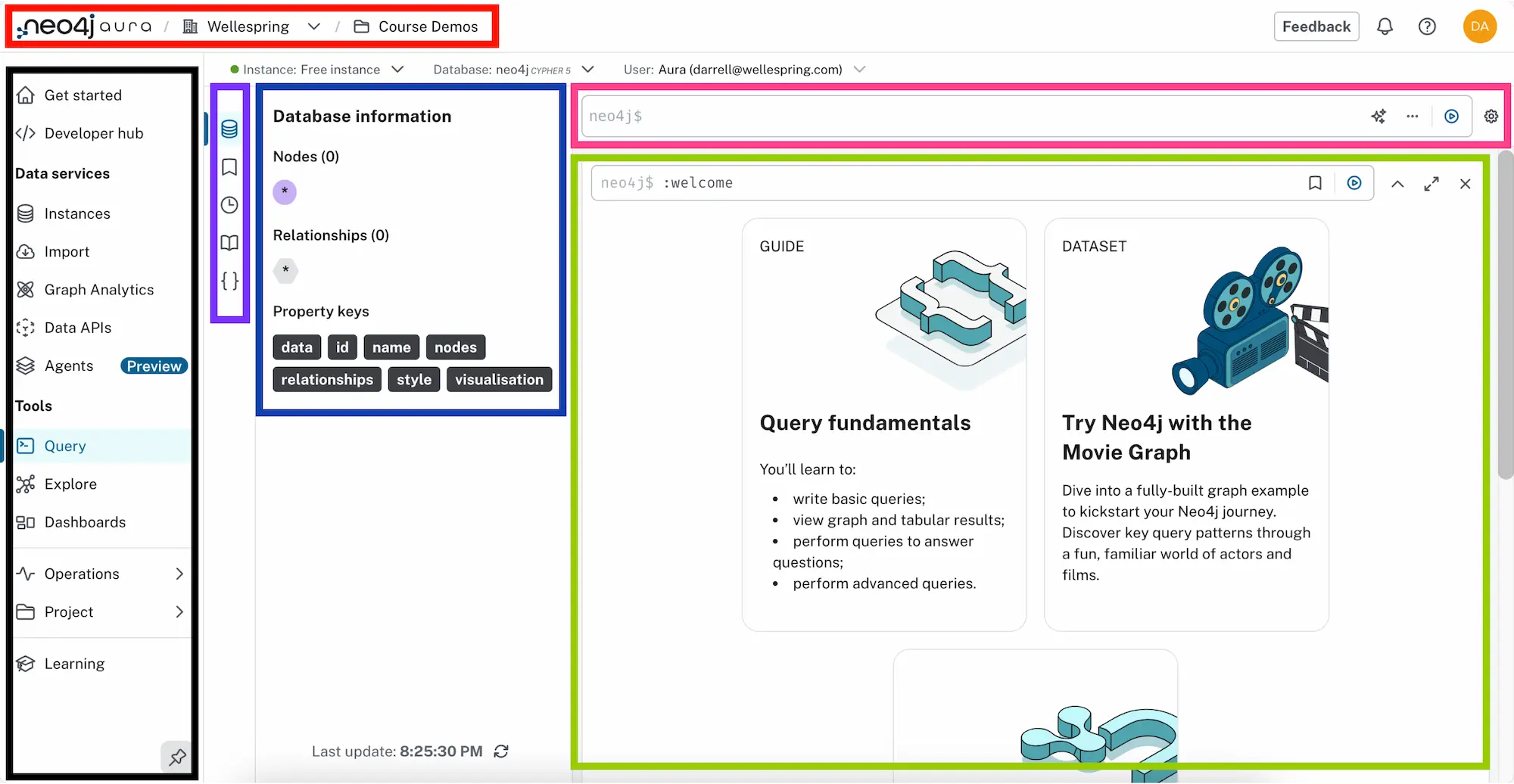
The Key Areas of the Neo4j Aura Console
| Area | Description / Purpose | Useful Tip(s) |
|---|---|---|
| Top Navigation | Neo4j Aura logo and Organization/ Project breadcrumb navigation at top of window. |
Allows fast Org/Project switching. |
| Left/Main Nav | Primary Aura Console navigation, giving access to key tools, data services, settings, and learning resources. |
For now, you can safely ignore most sections but the most important are 'Instances,' 'Query,' 'Explore,' and 'Learning.' Click the pin icon to minimize the panel. |
| Query Tool Nav | Exclusive to the Query Tool, this small area provides access to a set of 'drawers' related to database contents, commands, and queries. |
Hover over the icons to see the name of the 'drawer' that each activates. |
| Query Tool Drawer(s) |
Five 'drawer' options, corresponding to the five options in the Query Tool Nav: Database information, Saved Cypher, Query History, Cypher Reference, and Parameters. Each provides specific functionality and/ or information. |
The 'Saved Cypher' & 'Cypher Reference' drawers are extremely helpful, especially for frequent and/or complicated queries. Don't worry about 'Parameters' for now. |
| Cypher Editor | The most important part of the interface, where you enter and run database commands and queries, using Neo4j's 'Cypher' query language. You will use this often. |
Don't be afraid of this. It's really not that complicated. Try it now by typing: RETURN "Hi, Neo4j!"AS greeting; |
| Results Stream | A scrollable list of results from Cypher commands and queries, in reusable frames that can be edited and re-executed. The most recent is always at the top. |
Each result appears as a reusable frame and you can switch each between 'graph,''table,' and 'raw' views. Result frames can be expanded or collapsed. You may remove results one-by-one or you can use the :clear command toremove all of them at once. |
Essential Icons and What They Do
The Aura Console includes several icons. Here's what matters most right now:
| Icon | Label | What It Does & Where to Find It |
|---|---|---|
 |
Query Tool | Located in the Main/Left Nav Panel, providing quick access to the Query Tool, where you will spend most of your time interacting with your database. This is where you enter Cypher commands, add new nodes, relationships, and properties, and perform queries across your data. |
 |
Explore Tool | Located in the Main/Left Nav Panel, providing quick access to the Explore Tool, which is an embedded version of Neo4j Bloom, a no-code data exploration and visualization application. This is a great place to explore connections in your data, to discover relational paths, create beautiful visualizations, and share your data insights. |
 |
Instances / Database |
Located in the Main/Left Nav Panel (for "Instances") AND in the Query Tool Nav (for the "Database Overview" drawer). Allows you to switch to a different instance or to view key information about your instance's nodes, relationships, and properties. |
 |
Saved Cypher | Located in the Query Tool Nav, this icon provides access to the "Saved Cypher" drawer, where you can store, organize, and get quick access to commands and queries that you run frequently or want to share with others. This is especially useful for more complicated commands and queries. |
 |
History | Located in the Query Tool Nav, this icon provides access to your past Cypher commands and queries, listed in reverse chronological order (the most recent is always listed first). You may search this history, download individual Cypher statements, and delete items. Similar to "Saved Cypher" but automatic and organized only by execution time. |
 |
Cypher Reference |
Located in the Query Tool Nav, this icon provides access to an embedded version of the "Cypher Cheat Sheet" for Neo4j Aura. This searchable reference will allow you to learn more about the Cypher query language, with lots of examples so that you can better understand how to make the most of your database. |
 |
Run | Located at the right of the Cypher Editor and with every item in your Results Stream, this icon executes (or runs) Cypher commands and queries. |
 |
Settings | Located several places throughout the interface, this icon allows you to access and change settings for your Aura account, project, instance, or for specific tools, including individual queries or commands. Look for this icon if you want to change anything. |
 |
Help | Located near the top right-hand corner of the screen and a few other places in the Aura Console interface. This icon provides access to helpful Neo4j Aura documentation and other resources. |
 |
Learning | Located at the very bottom of the Main/Left Nav Panel, this icon provides quick access to Neo4j's extensive educational ecosystem, from "Getting Started" guides and sample datasets to technical docs. |
For now, you can safely ignore the rest. We may cover some of these in future courses, but we're not yet ready for them.
Main Nav Pin Icon
One additional icon that MAY be useful, though, is the "pin" icon at the bottom of the Main/Left Navigation Panel. By default, this is selected, forcing the full panel to be visible always. This icon allows you to change this behavior, making this nav panel collapsible.
| Icon | Label | What It Does & Where to Find It |
|---|---|---|
 |
Pin Nav Panel | Located at the very bottom of the Main/Left Nav Panel, this icon allows you to toggle between the navigation panel being collapsed or constantly open. This is set to be open by default. |
The following video shows how this icon works:
Pin/Unpin the Aura Console's Main/Left Navigation Panel.
Running and Re-Running Commands & Queries
Using the Query Tool:
- Type your command or query in the Cypher Editor.
- Click the Run icon OR use a keyboard shortcut (Windows:
Ctrl + Enter, MacOS:Command + Enter)
Let's practice with a few basic commands (we can't do queries yet, because our database is empty and all results will be empty):
RETURN "Hello!" AS message;- Click the Run icon or use a keyboard shortcut to execute this Cypher command.
- The result should appear in your Results Stream, like this:
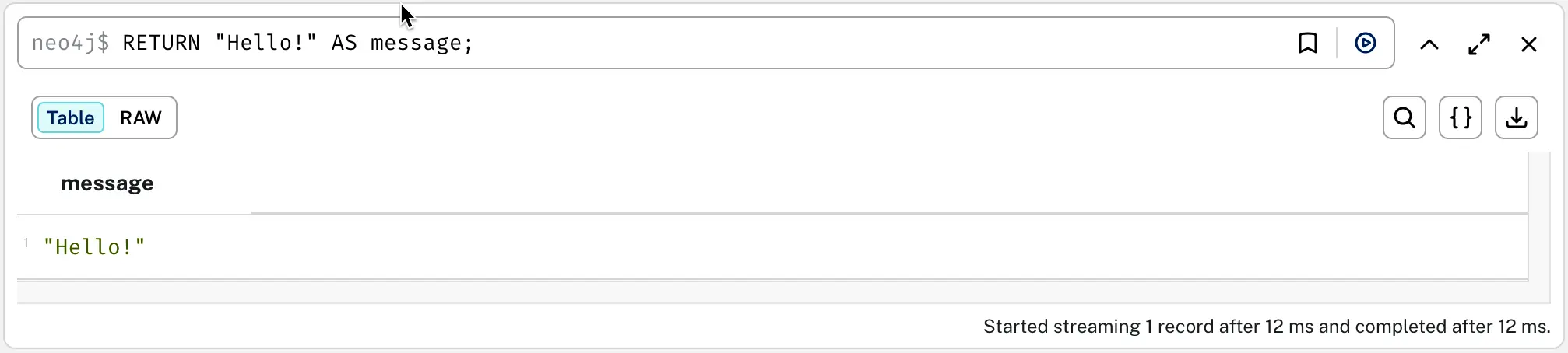
You may notice that we put quotation marks around the word "Hello!" This is because this is what's called a STRING: a type of data that is formed of alphanumeric characters that are meaningless to the computer. It is not a number or a declared statement that the system knows how to handle on its own. Passwords, text, or any combination of letters, punctuation, symbols (including spaces and emojis), or numbers that the system should not attempt to calculate will be treated as a string and REQUIRE quotation marks. Failure to include the quotation marks will result in an error.
Let's try using some numerical data next. In the Cypher Editor, type the following:
RETURN 2 + 2 AS math;- Click the Run icon or use a keyboard shortcut to execute the command.
- The result should appear in your Results Stream, like this:
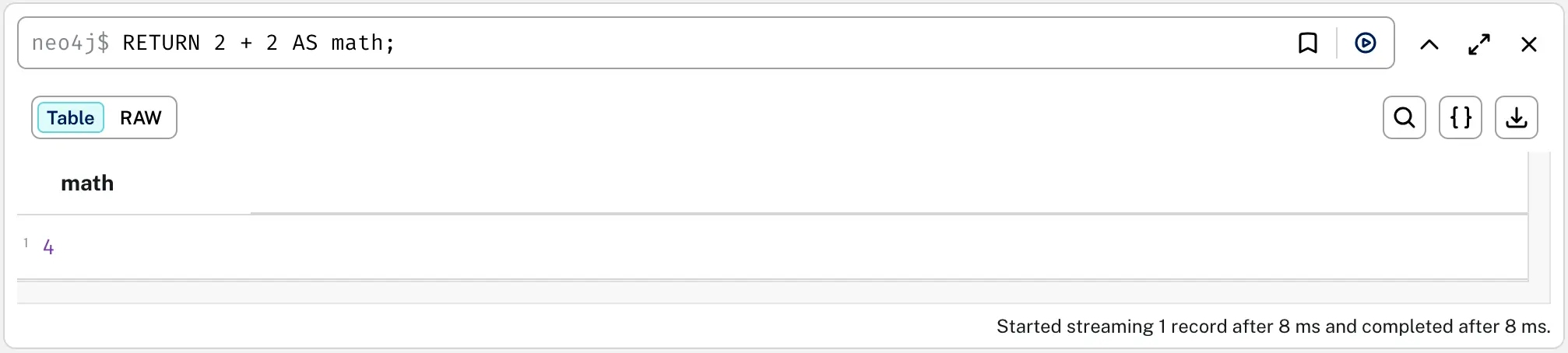
This time you may note that we didn't use any quotation marks. Why? Because we gave our database two numerical digits and asked it to perform a mathematical addition on these numbers. Since our numbers (2 and 2) were recognized as numerical data, the database treated them as such. Let's try this again, with a more complicated mathematical operation:
RETURN 2 * (3 + 5) / 1.5 AS math;- Click the Run icon OR use a keyboard shortcut to execute the command.
- The result should appear in your Results Stream, like this:
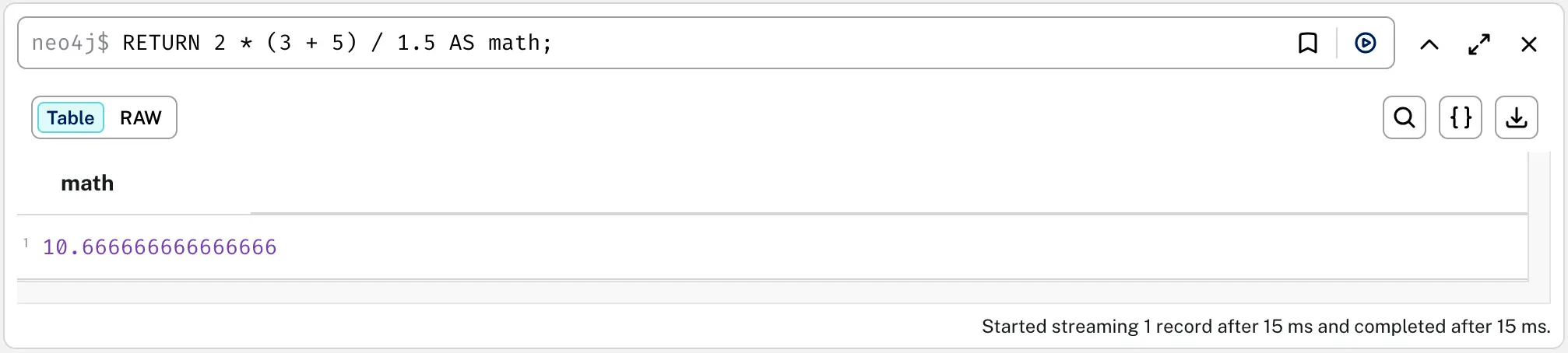
We're doing math with our database! It's still pretty simple but the system is very good at this kind of operation.
Let's try something a bit more complicated now, combining multiple text strings with numbers. In the Cypher Editor, type:
RETURN "Jesse Welles was just nominated for " + 2 * (1 + 1) + " Grammy Awards!" AS yippee;- Click the Run icon or use a keyboard shortcut to execute the command.
- The result should appear in your Results Stream, like this:
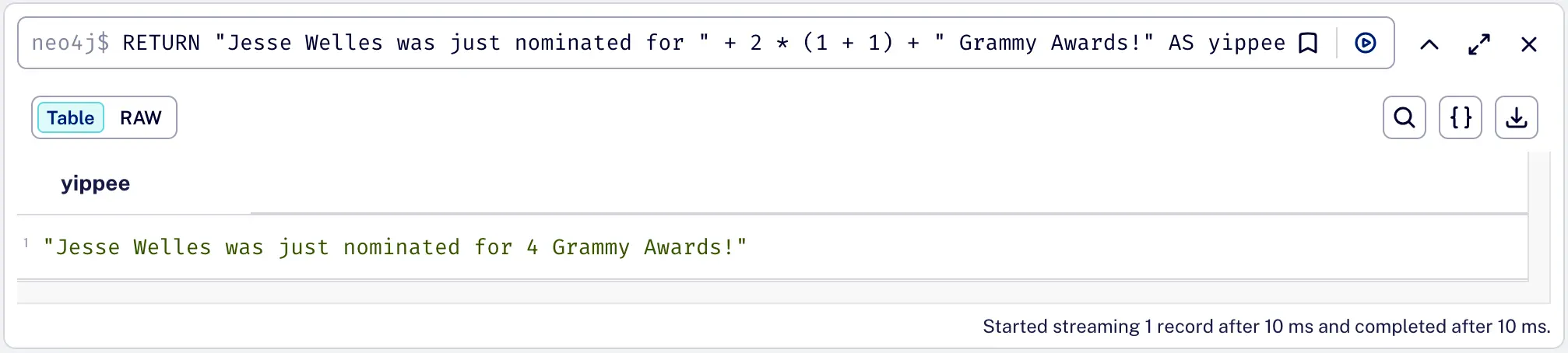
What we just did is quite simple for the database but a little complex for humans who are new to this kind of thing to understand. Let's look at the MIDDLE part of the command first: 2 * (1 + 1). This is basic math: 1+1=2 and 2*2=4. We knew that our desired number was 4 but we made it unnecessarily complicated to illustrate how mathematical operations can be embedded in a command or query, including those with text strings.
The rest of the command does s called concatenation, which is the joining up of items in a specific order. In this case, we concatenated two text strin" and " Grammy Awards!" AND placed the result (4) of our mathematical operation between them. You may have noticed that our first text string had an empty space at the end of it and our second text string had an empty space at its beginning: these ensured that these spaces would separate the number 4 from adjacent words in our final result, providing a correct sentence: "Jesse Welles was just nominated for 4 Grammy Awards!" And, yes, this happened—good luck, Jesse!
You may also have noticed that we've used the "AS some-word" format at the end of each of our commands. These were not placed in quotation marks and the word didn't really matter. This is a kind of variable that we are declaring as a name for our commands' result set. In normal circumstances, these words (message, math, yippee) would be considered strings and require quotation marks, but the fact that they were preceded by the Cypher "AS" informs the database that they are being declared as variables.
You should now be able to see our series of commands in your Results Stream, which you can scroll up and down through. You can edit the Cypher commands, re-run them, or delete these recent results from the Results Stream. Try doing all of this. You can also clear all results, giving you an empty Results Stream. To do this, enter the :clear command in the Cypher Editor and run it! Here's a short video showing all of this in action:
Editing and re-running past queries/commands, and clearing the Results Stream.
A Quick Humanities (Wellespring) Example
Let's enter some actual data and test the graph with a tiny network. In your Cypher Editor, enter the following multi-line command (use Shift + Return or Shift + Enter at the end of each line in order to prevent the command from running before we're finished):
CREATE (p:Person {name:"Jesse Wells"})
CREATE (s:Song {title:"Horses"})
CREATE (p)-[r:WROTE_SONG]->(s)
RETURN p, r, s;- Click the Run icon or use a keyboard shortcut to execute the command.
You should now see two nodes connected by a single arrow. Try clicking each node to inspect its properties. That's your first Wellespring-style graph!
Result Views: Table, Text, and Graph
Each command/query or result set can be viewed in different ways:
| View | Description |
|---|---|
| Graph | Displays results as a visual network of nodes and (if returned) relationships. Allows configuration of visual style, including colors, etc. |
| Table | Displays results as a spreadsheet-like table using JSON format. |
| RAW | Displays the request, server info, and response with full detail. Provides the most information but the hardest for human readability. |
Tip: When viewing the graph, you can drag nodes around, zoom in/out with your mouse wheel, and click nodes to see their properties on the right-hand panel.
Good Habits for Using the Aura Console
- Run small queries and observe results before moving on.
- Keep your commands tidy: use line breaks and indentation for readability. Remember to use
Shift + Returnfor new lines in order to prevent your command from running too early. - Use the "Table" view to debug if the graph looks odd.
- Name nodes and relationships using clear, human-readable labels.
There are no required naming rules, but it is common—and best—practice in Neo4j to use the following conventions:
| Named Item | Conventional Form | Examples |
|---|---|---|
| Node Labels | PascalCase | Person, Song, SongSection |
| Relationship Types | UPPER_SNAKE_CASE | QUOTES, WROTE_SONG |
| Property Names | camelCase | name, description, birthDate |
Node Labels should always start with a capital letter and if the label is composed of more than one word, each additional word should also be capitalized, with no spaces, hyphens, or underscores. This format is called "PascalCase."
Relationship Types should use ALL capital letters, with each additional word separated by an underscore. This underscore naming system is called "snake_case," and with all caps, it's "UPPER_SNAKE_CASE" (or "CONSTANT_CASE").
Both Nodes and Relationships can have properties and regardless of whether these are applied to Nodes or Relationships, they start with a lowercase letter and any subsequent words start with a capital letter, with no spaces, hyphens, or underscores. This format is called "camelCase."
Key Takeaways
- The Aura Console is your interactive workspace for Neo4j Aura.
- Focus on the Query Tool, Cypher Editor, and Results Stream area for now.
- You can switch views, clear results, and re-run commands/queries easily.
- Visualization is one of Neo4j's superpowers: it lets you see relationships as you build them.
- Neo4j has built a lot of excellent help, learning content, and reference materials into the Aura Console's interface.
Knowledge Check & Reflection
Suggested Readings & Resources
- GraphAcademy "Aura Fundamentals" course
- Neo4j Aura Documentation (Quick Start & Query sections)
- Merki Sasaki, Bryce, and Joy Chao. Graph Databases for Beginners. Neo4j, 2021.
- Robinson, Ian, Jim Webber, and Emil Eifrem. Graph Databases: New Opportunities for Connected Data. Second edition. O’Reilly Media, 2015.